
Your alarm just went off at a client site. What happens next decides whether you keep that contract.
For most security companies, “what happens next” is a scramble: phone calls down a contact list, a group text, and hoping somebody picks up. Minutes tick by while the site sits exposed, and nobody can tell the client exactly when a guard will arrive.
It does not have to work that way. With the right alarm response system, you dispatch the closest available guard with one tap, watch him move from accept to on-site in real time, and send the client a full report the moment he is done. No phone tree. No guesswork.
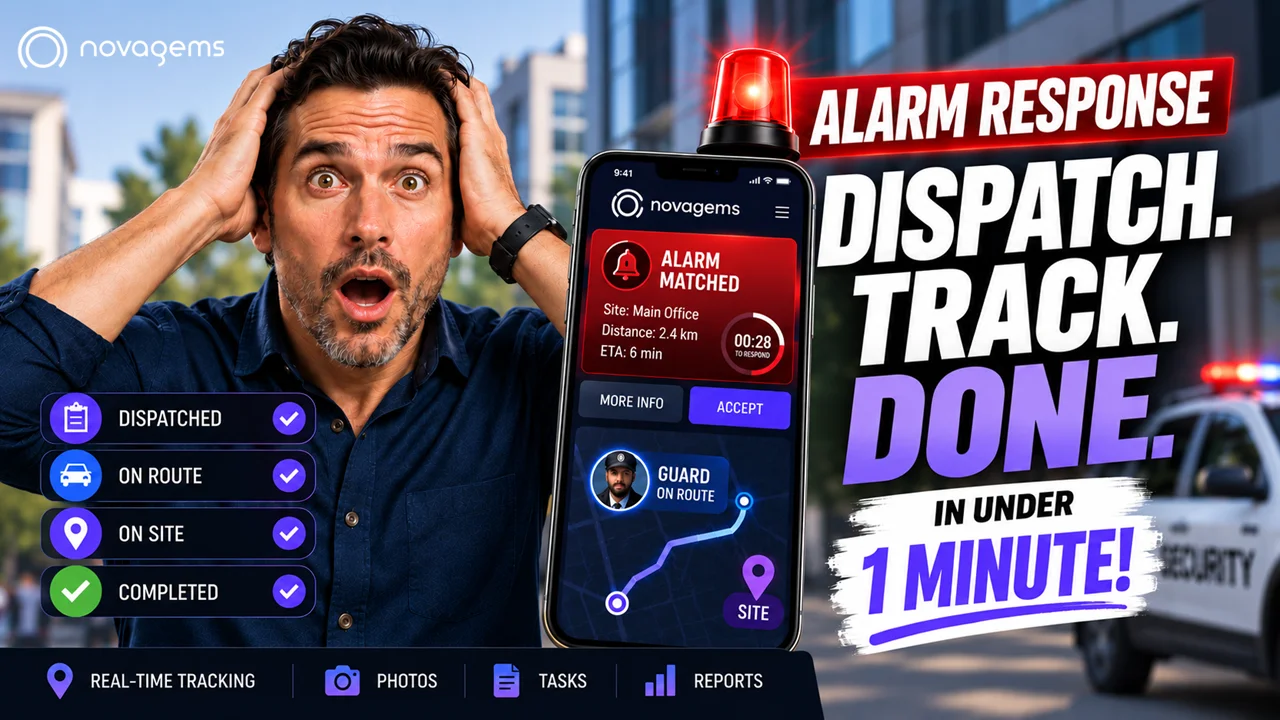
In this guide (and the video above), we walk through exactly how Alarm Response works in Novagems, from the alert coming in to the report landing in the client’s inbox.
What Alarm Response Actually Is
Alarm Response is Novagems’ emergency dispatch. The second a site needs a guard on the ground, you send the closest one and you know exactly when he gets there.
It is a one-time emergency shift, not a scheduled shift and not a patrol. It is created on the spot, it goes live the moment you publish it, and it closes out when the job is done. And it lives right inside Novagems, so there is no third-party app and no second subscription to manage.
Everything below happens in one place.
Step 1: Create the Alarm Shift in Seconds
Open the Watch section and, right at the top, you will see Alarm Shift. You get two options:
- Create from Scratch builds a fresh response.
- Create from Template pulls in a setup you have already saved, so if you run the same kind of response for the same client over and over, you are not filling out a form again at 2 AM.
Select the site. Search it or pick it from your list. This is the location the guard is being sent to, and it is what Novagems uses to work out who is closest. When you hit Next, the site’s address and geofence are carried across automatically, so the guard can only clock in when he is actually there.
Set the end time. This is the one timing decision you make. The start always says Now, you cannot change it, because an alarm shift begins the second you publish it. So all you set is the To: two hours, four hours, or till the end of the night.
Step 2: Dispatch the Closest Guard
Under Scheduled User, click Add Users. This opens your guard list for the shift, with search, filters, and, most importantly, every guard’s distance and travel time to the site, sorted closest first.
No guessing. No mental map of who lives where. The nearest qualified guard is right at the top.
An alarm comes in on top of everything you have already scheduled, your guards are already on shifts, on patrols, or on breaks, so Novagems shows you who can actually get there fastest without you having to remember any of it. (There is also an Open Shift option here for when you would rather broadcast the shift than pick someone yourself. That is a feature on its own, covered in a separate video.)
Hit Publish, and the shift goes live immediately. The notification lands on your guard’s phone.
Step 3: Track Every Step, Live
Once the shift is published, go back to Watch and click Assets. An Active Alarm option appears, that is where you track every alarm that is running.
Open it, and each alarm has its own progress bar that moves on its own:
| Stage | What it means |
|---|---|
| Created | The moment you published the shift |
| Accepted | The guard tapped Accept on his phone |
| On Route | He is moving toward the site |
| On Site | He has arrived (geofence-verified) |
| Completed | The response is done |
On the guard’s side, the alarm lands as an Alarm Matched card showing the site, the address, how far away it is, how long it will take him to get there, and a countdown to respond. He taps More Info for detail or Accept to take it, and the second he does, your tracker moves.
You are not calling him for updates. You are watching the path fill in.
Step 4: Get Proof Without the Paperwork
While the guard is out there, he is sending things back, and all of it lands in the same place. In Watch, click on any user to open everything for that guard’s shift. Three things matter most on an alarm:
- Live Pictures — the photos your guard captures during the response, coming in as he takes them. Visual proof he was there, doing the job.
- Task Monitoring — the checklist for that shift and how much of it is done, so one glance tells you what is completed and what is still open.
- Reports — your guard writes his report right from the shift: what he found when he arrived, and what he did about it. It is attached to that alarm, so it never ends up in a notebook or a WhatsApp thread.
And once the shift is done, you can send the report and the pictures together straight to the client. The whole response, in their inbox, and you did not have to write a word of it.
What Actually Makes It Fast: Finding the Right Guard
Everything above only works because of the one decision that sets the pace, how you find the guard in the first place. Inside Add Users, you control two things.
Location method. You decide how Novagems finds people:
- Live Location pulls up guards by where they actually are right now. This is what you want at 2 AM, when someone is already out on the road.
- Home Location finds guards by their registered address, useful when nobody is on shift, because the guard sleeping four minutes from the site is still your fastest option.
Filters decide who even shows up in your list:
- Alarm Active — guards switched on for alarm response right now. Usually your fastest yes.
- On Duty, Patrol — guards mid-round, so pulling one leaves a patrol unfinished.
- On Duty, Non-Patrol — guards on shift but posted in one place, so they are the easiest to redirect.
Tick the ones that make sense for the situation, or just search a guard by name if you already know who you want. And if nobody is close enough, hit Find More, Novagems widens the search radius and pulls in the next ring of guards.
That is the difference between a dispatch that takes seconds and a phone tree that takes an hour.
The Whole Response, Start to Finish
| Stage | What you do | What you get |
|---|---|---|
| Create | Pick the site, set the end time | Geofence carried across automatically |
| Dispatch | Add the closest guard, Publish | Instant notification to his phone |
| Track | Open Active Alarm | Live progress: Created → Accepted → On Route → On Site → Completed |
| Document | Open the guard’s shift | Live pictures, task checklist, written report |
| Close out | Send to client | Report + photos in their inbox |
Fast dispatch, live tracking, full record, all in one platform your team already uses for scheduling, GPS tracking, and incident reporting.
Ready to Respond to Alarms in Minutes, Not Hours?
Novagems gives your team emergency dispatch, live GPS tracking, and client-ready reporting in one app, built specifically for security companies.
Start Your Free 14-Day Trial → | Book a Live Demo →
Further Reading
- GPS Tracking and Geofencing — verified patrols and real-time guard location
- Incident Reporting Software — capture and share client-ready reports from the field
- Mobile Patrol — run and prove patrol rounds from the app
- Security Guard Management Software — the full operations platform for security firms
- Start a Free 14-Day Trial — cancel anytime
Frequently Asked Questions
What is alarm response in the security industry?
Alarm response is the emergency dispatch of a security guard to a site the moment an alarm is triggered. The goal is simple: get a qualified guard on the ground as fast as possible, confirm whether the alert is real, and document what happened. Speed and proof are everything.
How fast can you dispatch a guard with Novagems?
An alarm shift is created and published on the spot, not scheduled in advance. You select the site, set an end time, pick the closest guard from a distance-sorted list, and hit Publish. The notification lands on the guard's phone immediately, so you can dispatch the nearest guard in under a minute.
Does alarm response need a separate app or subscription?
No. Alarm Response is built into Novagems alongside scheduling, GPS tracking, patrols, and reporting. There is no third-party dispatch tool and no second subscription. Everything, from dispatch to the client report, happens in one platform.
How does Novagems find the closest guard to an alarm?
You choose between Live Location, which finds guards by where they actually are at that moment, and Home Location, which finds them by their registered address when no one is on shift. Every guard appears with their travel time and distance to the site, sorted closest first, so there is no guessing.
Can I track the guard after I dispatch him?
Yes. Each alarm has its own live progress bar that moves on its own: Created, Accepted, On Route, On Site, and Completed. You watch the response fill in instead of calling the guard for updates, and his GPS location and geofenced clock-in confirm he is actually on site.
Can I send the client a report after an alarm response?
Yes. The guard captures photos, completes the task checklist, and writes his report directly from the shift. Once the response is done, you can send the full record, report and pictures together, straight to the client's inbox without writing a word yourself.
What is the difference between an alarm shift and a regular shift?
A regular shift is scheduled in advance. An alarm shift is a one-time emergency shift created on the spot. Its start time is always Now, it goes live the moment you publish it, and it closes out when the job is done. It layers on top of whatever your guards are already assigned to.
See Novagems in action
Join 500+ security & cleaning companies that replaced spreadsheets with Novagems.
✓ 14-day free trial · ✓ Free onboarding · ✓ Cancel anytime