Last month, a security company owner in Texas told us he spent 11 hours every week building guard schedules in a spreadsheet. Eleven hours. That is almost a full day and a half, every single week, doing something that should take minutes.
He is not alone. Most security company owners and operations managers spend far more time on scheduling than they should, because the process is genuinely complicated. You are not just filling time slots. You are balancing certifications, overtime limits, guard preferences, site requirements, travel distances, and client expectations, all while dealing with last-minute callouts.
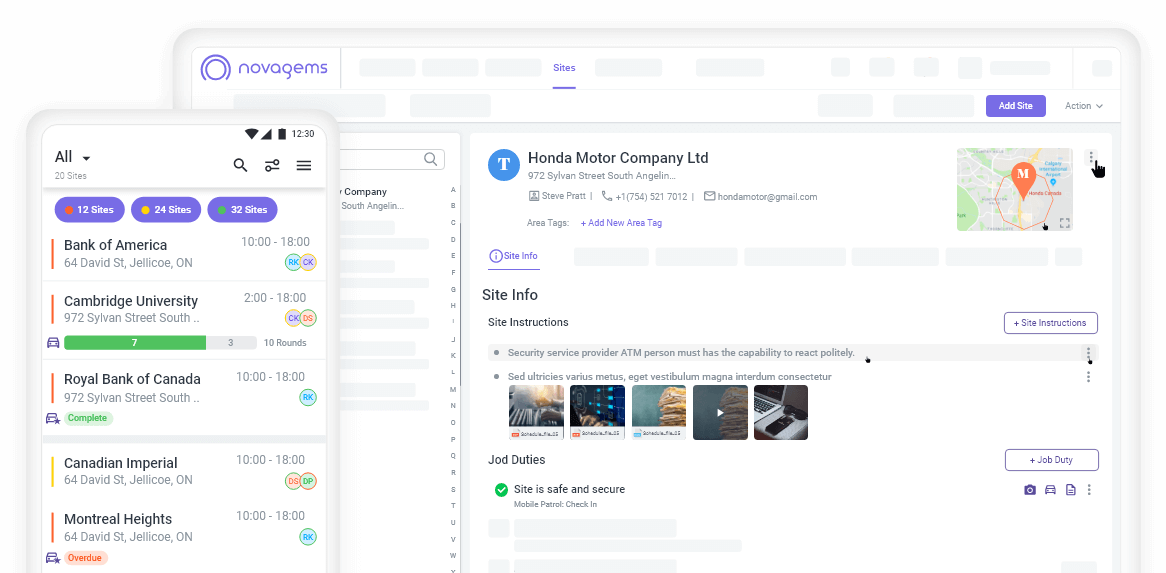
This guide breaks the entire process into 5 clear steps. Whether you manage 15 guards or 500, this framework works. And if you are still using spreadsheets, you will understand exactly why most growing companies switch to scheduling software before they hit 20 guards.
Why Security Guard Scheduling Is Harder Than It Looks
Scheduling a restaurant or retail team is straightforward: you have one location, predictable hours, and interchangeable staff. Security scheduling is a completely different challenge.
Here is what makes it harder:
- Multiple sites with different shift times, post requirements, and client expectations
- Certification requirements that restrict which guards can work which posts (armed vs unarmed, specific licenses)
- 24/7 coverage means overlapping shifts, night shifts, and weekend rotations
- Variable headcounts where some sites need 2 guards and others need 20
- Compliance rules that vary by state and province (overtime thresholds, mandatory breaks, maximum hours)
- Last-minute changes from guard callouts, client requests, and schedule conflicts
If your scheduling process does not account for all of these factors, you end up with double-bookings, overtime surprises, uncovered posts, and unhappy clients.
Step 1: Map Your Sites, Posts, and Shift Requirements
Before you build a single schedule, document what every site needs.
For each client site, record:
| Detail | Example |
|---|---|
| Site name | Parkview Office Complex |
| Address | 1450 Main St, Houston TX |
| Number of posts | 3 (lobby, parking, patrol) |
| Shift times | Day: 6AM-2PM, Swing: 2PM-10PM, Night: 10PM-6AM |
| Guards per shift | 2 day, 2 swing, 1 night |
| Special requirements | Armed guard required for night shift |
| Client contact | Mike Roberts, 555-0142 |
Do this for every site. It takes time upfront, but it eliminates guesswork every week.
Pro tip: If a site has specific requirements (armed guards, first aid certification, bilingual guards), note those directly on the site profile. This prevents assigning unqualified guards.
Step 2: Understand Your Guard Pool
Your scheduling decisions are only as good as your knowledge of who is available and what they can do.
For each guard, track:
- Certifications and licenses (armed permit, first aid, specific state licenses)
- Maximum weekly hours (full-time vs part-time, overtime thresholds)
- Availability and preferences (which days they can work, preferred shifts)
- Home address or zone (for proximity-based scheduling)
- Performance and reliability (no-show history, client feedback)
- Sites they know (experienced at which locations)
When Marcus, an operations manager in Florida, started tracking guard proximity to job sites, his late arrivals dropped by 35% in the first month. He was no longer sending guards on 45-minute commutes when someone lived 10 minutes away.
Step 3: Build the Weekly Schedule
Now you have your site requirements and your guard pool. Time to build the actual schedule.
Start with recurring shifts. If 80% of your schedule stays the same week to week, do not rebuild it from scratch. Copy last week’s schedule and adjust.
Then fill gaps. Look at open shifts where guards are unavailable, on leave, or where requirements changed. Fill these from your available pool, prioritizing:
- Guards who know the site (less training, fewer mistakes)
- Guards closest to the site (less travel time, fewer late arrivals)
- Guards with the lowest weekly hours (prevents overtime)
Check for conflicts before saving. Before you finalize any assignment, verify:
- The guard is not already scheduled elsewhere at the same time
- The guard has the required certifications for the post
- The guard will not exceed overtime thresholds with this shift
- The guard is not scheduled for back-to-back shifts without required rest
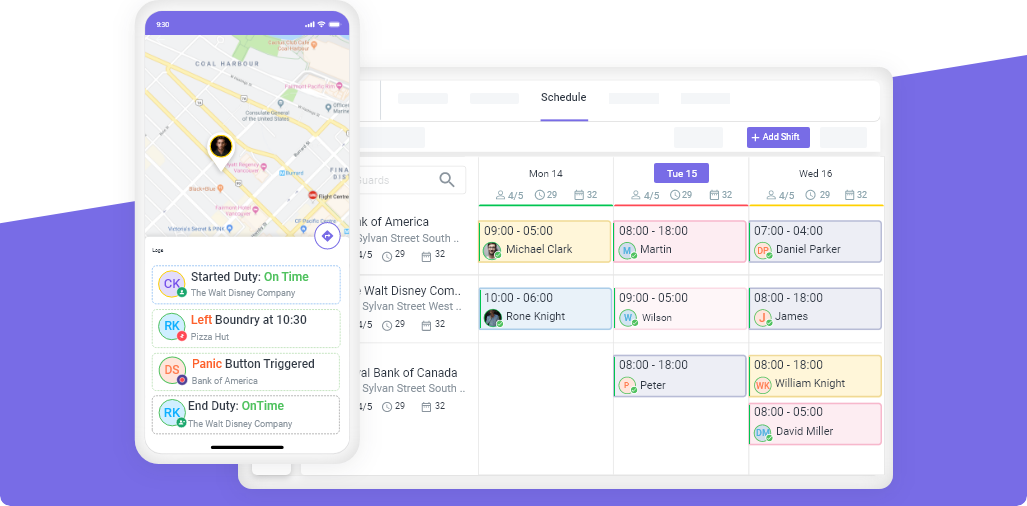
This is where spreadsheets fail. A spreadsheet will not warn you about double-bookings or overtime. Scheduling software like Novagems flags these conflicts automatically before you save the schedule.
Step 4: Handle Conflicts, Overtime, and Compliance
Even with a solid schedule, conflicts happen. The question is whether you catch them before they cost you money.
Overtime Prevention
Overtime is the biggest silent profit killer in security. A guard scheduled for 44 hours does not just cost 4 extra hours of pay. Those 4 hours cost 1.5x the regular rate, and if the overtime was not billed to the client, it comes straight out of your margin.
The fix: Make weekly hours visible at the point of scheduling. When you are assigning a shift, you should see that a guard is already at 38 hours before you add another 8-hour shift. This is not information you should have to calculate manually.
Compliance Rules
| Rule | Federal (FLSA) | California | Ontario |
|---|---|---|---|
| Overtime after 40 hrs/week | ✓ | ✓ | ✓ (44 hrs) |
| Overtime after 8 hrs/day | ✗ | ✓ | ✗ |
| Mandatory meal break | ✗ | ✓ (30 min after 5 hrs) | ✗ |
| Maximum hours per day | None | None | None |
| Rest between shifts | None | None | 8 hrs recommended |
Know the rules for every state and province where you operate. One overtime violation can trigger an audit that costs more than years of scheduling software.
Step 5: Publish, Notify, and Track Changes
Do not let guards see the schedule while you are still making changes. Use a draft, review, publish workflow:
- Draft mode: Build and adjust the schedule. Guards do not see it yet.
- Review: Check for conflicts, overtime, uncovered posts. Make final adjustments.
- Publish: Guards receive notifications with confirmed shift details.
- Require confirmation: Guards confirm they will attend. Unconfirmed shifts get flagged.
When a schedule change happens after publishing, the affected guard should receive an immediate notification. If a shift is cancelled, reassigned, or time-changed, silence is not an option. The guard needs to know.
Best practice: Publish schedules at least one week in advance. Guards who know their schedule early are significantly less likely to no-show.
Security Guard Shift Types Explained
| Shift Type | How It Works | Best For | Drawback |
|---|---|---|---|
| Fixed | Same guards work the same shifts every week | Stability, low no-show rates | Some guards always get undesirable hours |
| Rotating | Guards cycle through different shift times (day, swing, night) | Fair distribution of hours | Takes time to adjust, higher error risk |
| Split | Two work blocks with a break (e.g., 6AM-10AM, then 4PM-8PM) | Sites with peak/off-peak patterns | Guards dislike long unpaid gaps |
| On-Call | Guards are on standby for emergencies or last-minute coverage | Backup coverage | Must be paid standby rates in some states |
Most security companies use a combination. Fixed shifts for core coverage, with on-call guards for emergencies and callout coverage.
Spreadsheets vs Scheduling Software
Jennifer, who runs a 60-guard security company in Ontario, switched from spreadsheets to Novagems after a double-booking caused her to lose a client contract worth $8,000 per month. The spreadsheet did not flag that the same guard was assigned to two sites at the same time. The client found out when no one showed up.
Here is how the two approaches compare:
| Feature | Spreadsheet | Scheduling Software |
|---|---|---|
| Drag-and-drop scheduling | ✗ | ✓ |
| Automatic conflict detection | ✗ | ✓ |
| Overtime alerts before saving | ✗ | ✓ |
| Mobile access for guards | ✗ | ✓ |
| Shift confirmation notifications | ✗ | ✓ |
| GPS-verified clock-in | ✗ | ✓ |
| Real-time schedule changes | ✗ | ✓ |
| Certification tracking | ✗ | ✓ |
| Payroll-ready timesheets | ✗ | ✓ |
| Cost per month | Free | $6-15/user |
| Time to build weekly schedule | 4-11 hours | 30-60 minutes |
The spreadsheet is free. But the time cost, error cost, and client risk cost far more than $6-15 per guard per month.
How to Choose Security Guard Scheduling Software
When evaluating scheduling tools, focus on these security-specific requirements:
- Multi-site scheduling with different shift times per location
- Certification and license tracking so unqualified guards cannot be assigned
- Overtime visibility at the point of scheduling, not in a separate report
- GPS tracking and geofencing to verify guards are on-site
- Mobile app for guards with shift details, confirmations, and notifications
- Open shift management for last-minute callout coverage
- Client reporting so you can show clients their coverage in real time
General workforce tools like When I Work or Deputy are built for restaurants and retail. They lack checkpoint tours, incident reporting, and client portals that security companies need.
Start Building Better Schedules Today
Security guard scheduling does not have to take hours every week. The 5-step framework, map your sites, know your guards, build from templates, catch conflicts early, and publish with confirmations, works regardless of which tool you use.
But the right tool makes every step faster. Ready to see the difference? Start your free 14-day trial with Novagems and build your first schedule in under an hour.
See Novagems in action
Join 500+ security & cleaning companies that replaced spreadsheets with Novagems.
✓ 14-day free trial · ✓ Free onboarding · ✓ Cancel anytime